
Homepage First Impression

What a stranger thinks your homepage says, set beside what you meant it to say.
/recon11-homepage-first-impression <screenshot>Good first calls
/recon11-homepage-first-impression (attach a screenshot)/recon11-homepage-first-impression (attach desktop and phone screenshots) read first, then ask me/recon11-homepage-first-impression
- What it does
- reads a homepage as a stranger would, then compares that with what you meant.
- Best for
- a homepage that gets visits and few actions.
- You get
- 1 the stranger's read2 your intent3 the gaps and the smallest fix for each
- Give it
- one screenshot of the first screen, at the size most visitors see
- Tips
- give your own three answers before you read its take. Use the phone screenshot too.
The skill prints this card first on every call, then does the work. It is laid out here; in your agent it prints as plain text.
- Skill no.
- 04 of 10
- Class
- Recon11 original
- Package
- 3 files, 3 KB
- License
- Recon11 original
- Size
- one file
- Checked
- Nov 27, 2026
What it does
What it does, in the order it does it.
The short version
- Asks what you meant the page to say.
- Reads the screenshot using only what is visible.
- Says what it offers, who it is for and where the eye goes.
- Lists each gap with the smallest fix.
Go: Reach for it when
- A homepage with traffic and few bookings, calls or sales.
- A page you have looked at too long to see.
- Checking a redesign before it goes live.
No-go: Use something else when
- Replacing real user research. It is one reading.
- Inner pages with no first-screen job.
- A forecast. It will not promise a result.
How to call it
Type the command, then say what to work on. Copy any line and change the target. Slash commands. A slash command is the skill name with a / in front, typed as the first thing in a new message. Everything after it is plain English: what you want worked on. Copy puts the whole line on your clipboard, so you can paste it and swap in your own target.
/recon11-homepage-first-impression (attach a screenshot)Asks your three answers, then gives the read and the gaps./recon11-homepage-first-impression (attach desktop and phone screenshots) read first, then ask meGives both reads before it asks what you meant./recon11-homepage-first-impressionPrints the field card and asks for a screenshot.
Tips
What gets the best result, and where it stops.
Field notes
- Answer first. Your three answers are worth more before you see its read.
- Send the phone view. It is the first screen for most visitors.
- Crop to the first screen. The read is about what shows before scrolling.
- Fix the first click first. It is usually the cheapest miss to close.
What it will not do
- Predict conversion rates or claim a fix will raise sales.
- Use anything outside the screenshot for the read.
- Call a read a fact. It is one careful reading, not a user study.
- Read text it cannot make out. It says the text is unreadable.
The demo
A fixed sample you can run here. Use the switches. Nothing is uploaded or sent.
A stranger gives a homepage about five seconds. What do they think it offers, who do they think it is for, and where do they click?
What the page seems to say
- Offer: mobile dog grooming that comes to your door. The name and that one line are the biggest things on the page.
- Audience: anyone with a dog. Nothing says which towns are covered.
- First click: Gallery, because it is the brightest thing on the page. The booking button is quieter.
What the owner meant
- Offer: grooming at your door. Landed The page says it in the second line.
- Audience: dog owners on the Space Coast. Missed The area is not named.
- First click: Book a visit. Missed Gallery is louder.
One landed and two missed. Both misses are small fixes: name the area, and make Book a visit the loudest button.
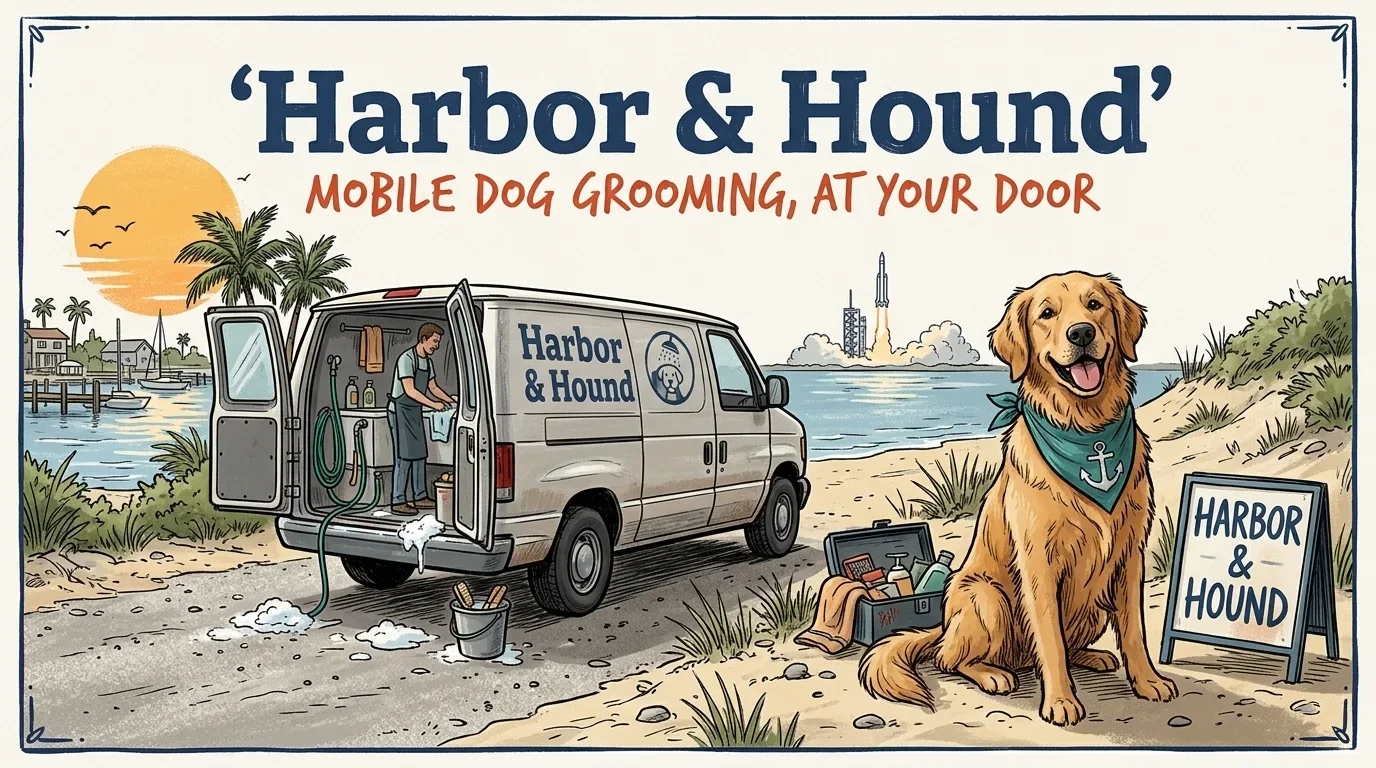
Sample business. Harbor & Hound is made up for this demo. It is not a real company, and nothing here is a real offer.
The numbers match the notes beside the tablet.
Install and run
Pick the route that matches where you work.
Claude Code
- Download recon11-homepage-first-impression.zip and unzip it. You get one folder named
recon11-homepage-first-impression. - Move that folder into
.claude/skills/inside a project, or into~/.claude/skills/to have it in every project. Hidden folders and the ~ sign. A folder whose name starts with a dot is hidden by default. On a Mac, press Command, Shift and period in Finder to show hidden folders. In Windows File Explorer, choose View, then Show, then Hidden items. The~stands for your home folder, such as/Users/yournameon a Mac orC:\Users\yournameon Windows. If theskillsfolder is not there yet, create it. - Start a new session and type
/recon11-homepage-first-impression.
The Claude app
- Download the zip. Do not unzip it.
- In Claude, open Customize, then Skills.
- Press the plus button, choose Create skill, then Upload a skill, and pick the zip.
- Code execution has to be switched on for skills to run. Code execution. It is a setting inside the Claude app, and skills cannot run with it off. The Anthropic help article linked under these steps shows where to find it. On a work account, an admin may control the setting.
Steps from Anthropic's help article, Use skills in Claude.
What it needs
- An agent that can read files and see images.
- Nothing else. It is one instruction file.
Other agents
Unzip and put the folder where your agent reads skills. These paths come from the skills CLI's own agent list. These paths. The skills CLI is the open-source skill installer from Vercel, vercel-labs/skills on GitHub. It keeps a list of where each agent looks for skills, in docs/agents.md, and this table was read from that list on Nov 27 2026. "In a project" is a folder inside the one project you are working in, so the skill loads only there. "For every project" is a folder in your home folder, written ~, so the skill loads everywhere. If your agent is not in the table, check that list before guessing a path.
| Agent | In a project | For every project |
|---|---|---|
| Cursor | .agents/skills/ | ~/.cursor/skills/ |
| GitHub Copilot | .agents/skills/ | ~/.copilot/skills/ |
| Gemini CLI | .agents/skills/ | ~/.gemini/skills/ |
| OpenCode | .agents/skills/ | ~/.config/opencode/skills/ |
| Windsurf | .windsurf/skills/ | ~/.codeium/windsurf/skills/ |
What is in the package
3 files, 3 KB zipped. Nothing is fetched at install time.
Packing list
recon11-homepage-first-impression.zip, 3 files, 3 KB
- recon11-homepage-first-impression/the folder
- NOTICE.md1 file
- SKILL.md1 file
- evals/1 file
SHA-256 of the zip, to confirm your copy is the one tested. The bars are drawn from its digits.
1f926a98f8c4aba56e0e859a30086a3ac1b4918d4566bd65b14b638f42be3e6c
How it was tested
- Zip opens cleanly and holds one folder with three files.
- Checked against the checklist in Anthropic's Skill authoring best practices: description says what and when, body under 500 lines, workflow checklist, check-before-handing-back loop, output template, worked example.
- Three evaluation scenarios are in
evals/evals.json. - Frontmatter parses, and the name matches the folder.
- The demo on this page was built by hand to the skill's steps, on a made-up homepage.
- Not run here: the three evaluations, or the skill against a live agent on a real project. Try it in a safe place first.
The skill file
The instruction file, in full. Copy it, or scroll it here.
---
name: recon11-homepage-first-impression
description: Reads a homepage screenshot the way a stranger would, saying what the page appears to offer, who it appears to serve and where a visitor would click first, then compares that with what the owner intended. Use when a homepage gets visits but few bookings, calls or sales, the user asks what their homepage says to a stranger, or wants a five-second test. Invoke as /recon11-homepage-first-impression with a homepage screenshot.
---

# Recon11 Homepage First Impression

Original work by Recon11 Global Systems, LLC.

## 1. Field card (show it first, every time)

On every invocation, before any tool call, print this card exactly as written. Then carry on with the request. If there is no screenshot, stop after the card and ask for what is missing.

```text
RECON11 HOMEPAGE FIRST IMPRESSION    /recon11-homepage-first-impression <screenshot>
What it does : reads a homepage as a stranger would, then compares that with what you meant.
Best for     : a homepage that gets visits and few actions.
You get      : 1 the stranger's read  2 your intent  3 the gaps and the smallest fix for each
Give it      : one screenshot of the first screen, at the size most visitors see
Tips         : give your own three answers before you read its take. Use the phone screenshot too.
```

Copy this checklist into your reply and tick it off as you go:

```text
- [ ] 1. Field card printed
- [ ] 2. Ask for the owner's intent first
- [ ] 3. Read the screenshot as a stranger
- [ ] 4. Compare
- [ ] 5. Checked before handing back
```

## 2. Ask for the owner's intent first

Before showing any read, ask three questions and keep the answers.

1. What does this page offer?
2. Who is it for?
3. What should a visitor click first?
4. If the user wants the read first, give it, and ask afterward.

## 3. Read the screenshot as a stranger

Use only what is visible in the image. Do not use the URL, the brand's reputation or anything the user said.

1. **Offer.** What the page appears to offer, from the largest text and the main picture.
2. **Audience.** Who it appears to be for, and what on the page says so.
3. **First click.** The element with the most visual weight, and why.
4. Point at the part of the image each answer came from.
5. Say when something is unreadable or cut off instead of guessing.

## 4. Compare

1. Put the read beside the intent, one row per question: landed or missed.
2. For each miss, name the smallest change that would close it.
3. Rank the misses by how much they cost: the first click first.

## 5. Check before handing back

Go through every line. If one fails, fix it and go through the list again. Hand back only when every line passes.

- [ ] The read uses only what is visible in the screenshot.
- [ ] Each answer in the read points at the part of the image it came from.
- [ ] Text that is unreadable or cut off is called unreadable, not guessed.
- [ ] Each miss has one smallest fix, and the misses are ranked.
- [ ] Nothing forecasts conversions or sales.
- [ ] Check the result at 1440, 1024, 768 and 390 wide. No sideways scroll, no clipped text.
- [ ] Text meets WCAG AA contrast. Keyboard focus is visible.
- [ ] No invented facts, numbers, testimonials, client names or logos. Missing material is listed for the user.
- [ ] Commas, not em dashes, in interface copy.

## 6. What it will not do

1. Predict conversion rates or claim a fix will raise sales.
2. Use anything outside the screenshot for the read.
3. Call a read a fact. It is one careful reading, not a user study.
4. Read text it cannot make out. It says the text is unreadable.

## 7. Hand back

Use this format. Drop a section only when it truly has nothing in it, and say so.

```markdown
## Read
| Question | Stranger's read | Points at | Owner meant | Landed or missed |
|---|---|---|---|---|
| Offer | | | | |
| Audience | | | | |
| First click | | | | |

## Smallest fixes, in order
1. ...
```

Then offer `/recon11-titanium recon` or `/recon11-overwatch audit` on the result.

## 8. Worked example

Input:

```text
/recon11-homepage-first-impression (screenshot of the Harbor & Hound homepage). Owner: offer is grooming at your door, audience is Space Coast dog owners, first click is Book a visit.
```

What the hand-back says, condensed:

```text
Offer: landed. The second line says mobile dog grooming at your door.
Audience: missed. No town or area is named anywhere on the first screen.
First click: missed. Gallery is the brightest button; Book a visit is an outlined button beside it.
Fixes: 1 make Book a visit the solid button and Gallery a plain link. 2 put the service area in the second line.
```

The business in this example, Harbor & Hound, is made up.
Source and license
Where it came from, and the terms it is shared under.
| Item | Detail |
|---|---|
| Author | Recon11 Global Systems, LLC |
| Origin | Idea 04 of ten on the Recon11 showcase |
| Written | Nov 28, 2026 |
| Demo content | Harbor & Hound and everything in the demo are made up for this page. |